 China
China
Bambu Lab P2S FarmLoop Combo at a glance
The Bambu Lab P2S FarmLoop Combo is a 3D printer by Bambu Lab with a 256 x 256 x 256 mm build volume.
- Build volume
- 256 x 256 x 256 mm
- Prints well
- PLA, PETG, TPU & flexibles
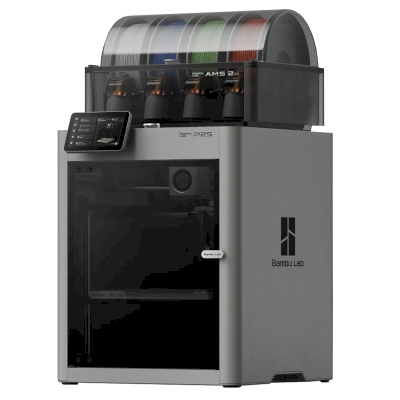
Bambu Lab P2S FarmLoop Combo is a variant of the Bambu Lab P2S Combo.
This means it shares many characteristics with the base model but may have specific modifications, additional features, or bundled accessories.
Connect the Bambu Lab P2S FarmLoop Combo to SimplyPrint
Does the Bambu Lab P2S FarmLoop Combo 3D printer work with SimplyPrint, OctoPrint, Mainsail and Fluidd? Each way of connecting it, what it needs, and how to set it up.
-

SimplyPrint Client
Compatible
What you need: A computer or Raspberry Pi on the same network that stays on, running the SimplyPrint Client
-


Klipper (Moonraker)
Not compatible
-

OctoPrint
Directly, over USB
Not compatible
What works with SimplyPrint
Connected through SimplyPrint Client in LAN-only mode, SimplyPrint supports everything the Bambu Lab P2S FarmLoop Combo lets other software do: the camera and AI failure detection, remote printing, skipping objects, temperature and movement control, filament mapping for its multi-material unit and AutoPrint. The only exceptions are what the Bambu Lab P2S FarmLoop Combo doesn't let other software do: baby stepping, bed leveling and Z-Offset Calibration. The table below compares the two ways of connecting it to SimplyPrint.
Every SimplyPrint feature, for each way of connecting it to SimplyPrint
| Connected to SimplyPrint through | ||
|---|---|---|
| SimplyPrint feature | SimplyPrint Client (LAN-only mode, recommended) Compatible | SimplyPrint Client (Cloud mode) Compatible |
| Monitoring | ||
| Live status and progress | Yes | Yes |
| Webcam | Yes 1 | Yes 1 |
| AI failure detection | Yes 1 | Yes 1 |
| Time left | Yes | Yes |
| Layer progress | Yes | Yes |
| Temperatures | Yes | Yes |
| Printing | ||
| Starting a print | Yes | Depends 2 |
| Pause, resume and cancel | Yes | Depends 2 |
| Skip objects | Yes | Depends 2 |
| Print start options | Yes | Depends 2 |
| Files | ||
| Print sliced 3MF files | Yes | Yes |
| Printer control | ||
| Change temperatures | Yes | Depends 2 |
| Moving with the controls | Yes | Depends 2 |
| Homing | Yes | Depends 2 |
| Extrude and retract | Yes | Depends 2 |
| Change print speed | Yes | Depends 2 |
| Fan speed | Yes | Depends 2 |
| Baby stepping | Not offered by the printer 3 | Not offered by the printer 3 |
| Send G-code | Yes | Depends 2 |
| Calibration | ||
| Change filament | Yes | Depends 2 |
| Bed leveling | Not offered by the printer 3 | Not offered by the printer 3 |
| Z-Offset Calibration | Not offered by the printer 3 | Not offered by the printer 3 |
| Multi-material | ||
| Map filament to multi-material slots | Yes 4 | Yes 4 |
| Sync loaded filament from the multi-material unit | Yes 4 | Yes 4 |
| Automation | ||
| AutoPrint Pro | Yes | Depends 2 |
| Download the file before the print starts | Yes | Not offered by the printer 3 |
Connected to SimplyPrint through SimplyPrint Client (LAN-only mode, recommended)
Compatible
Monitoring
- Live status and progress Yes
- Webcam Yes 1
- AI failure detection Yes 1
- Time left Yes
- Layer progress Yes
- Temperatures Yes
Printing
- Starting a print Yes
- Pause, resume and cancel Yes
- Skip objects Yes
- Print start options Yes
Files
- Print sliced 3MF files Yes
Printer control
- Change temperatures Yes
- Moving with the controls Yes
- Homing Yes
- Extrude and retract Yes
- Change print speed Yes
- Fan speed Yes
- Baby stepping Not offered by the printer 3
- Send G-code Yes
Calibration
- Change filament Yes
- Bed leveling Not offered by the printer 3
- Z-Offset Calibration Not offered by the printer 3
Multi-material
- Map filament to multi-material slots Yes 4
- Sync loaded filament from the multi-material unit Yes 4
Automation
- AutoPrint Pro Yes
- Download the file before the print starts Yes
Connected to SimplyPrint through SimplyPrint Client (Cloud mode)
Compatible
Monitoring
- Live status and progress Yes
- Webcam Yes 1
- AI failure detection Yes 1
- Time left Yes
- Layer progress Yes
- Temperatures Yes
Printing
- Starting a print Depends 2
- Pause, resume and cancel Depends 2
- Skip objects Depends 2
- Print start options Depends 2
Files
- Print sliced 3MF files Yes
Printer control
- Change temperatures Depends 2
- Moving with the controls Depends 2
- Homing Depends 2
- Extrude and retract Depends 2
- Change print speed Depends 2
- Fan speed Depends 2
- Baby stepping Not offered by the printer 3
- Send G-code Depends 2
Calibration
- Change filament Depends 2
- Bed leveling Not offered by the printer 3
- Z-Offset Calibration Not offered by the printer 3
Multi-material
- Map filament to multi-material slots Yes 4
- Sync loaded filament from the multi-material unit Yes 4
Automation
- AutoPrint Pro Depends 2
- Download the file before the print starts Not offered by the printer 3
Works Depends Not supported Not offered by the printer
- Needs a camera
- Bambu Lab firmware from 2025 on only allows monitoring in cloud mode: use LAN-only mode to start prints and control the printer. Older firmware still allows both.
- The printer doesn't offer this to other software.
- Needs a multi-material unit
What slicer to use for the Bambu Lab P2S FarmLoop Combo
Use BambuStudio, Bambu Lab's own slicer: it has a ready-made profile for the Bambu Lab P2S FarmLoop Combo. Also with a profile for it: OrcaSlicer, ElegooSlicer.
Ready-made profile for the Bambu Lab P2S FarmLoop Combo
-

-
 OrcaSlicerRuns in the SimplyPrint cloud
 -
 ElegooSlicerRuns in the SimplyPrint cloud
No profile for the Bambu Lab P2S FarmLoop Combo
 PrusaSlicer
 CrealityPrint
 Cura
Cura Kiri:Moto
We only list slicers you can use in the SimplyPrint cloud, so there may be others for the Bambu Lab P2S FarmLoop Combo.
Cloud-Based Slicer for Bambu Lab P2S FarmLoop Combo: Use BambuStudio Online
Use BambuStudio and other slicers - directly in your browser with SimplyPrint's online cloud slicer. No installation required. Slice your Bambu Lab P2S FarmLoop Combo models from any device, anywhere in the world!
Try Online Slicer NowProfiles and other slicers
Automatic Profile Updates: Profiles are automatically checked and fetched from the slicer GitHub repositories every day, as well as from our own open-source community-driven slicer profile database. This ensures you always have access to the latest profiles.
Note: Other slicers, such as Simplify3D, ideaMaker, SuperSlicer and KISSlicer, aren't in our cloud, so we don't track their profiles. They may still work well with your Bambu Lab P2S FarmLoop Combo: check the slicer's own documentation or forums for a profile. You can also contribute profiles to our open-source slicer profile database on GitHub.
The app for the Bambu Lab P2S FarmLoop Combo
SimplyPrint works as the Bambu Lab P2S FarmLoop Combo's app: on your phone and in any browser, with a slicer in the cloud.
What you get with SimplyPrint
- An app for iPhone and Android, the same in any browser, and a slicer in the cloud.
- More than monitoring: a print queue, AI failure detection, AutoPrint and accounts for a team.
- Printers from many brands in one place, side by side.
- A European cloud: hosted in Frankfurt, Germany, under the GDPR.


Running several Bambu Lab printers? See SimplyPrint's print farm software for Bambu Lab.
Automate the Bambu Lab P2S FarmLoop Combo
Plate swappers and auto-ejection kits made for the Bambu Lab P2S FarmLoop Combo work with SimplyPrint's AutoPrint: after each print the plate is cleared and the next job starts from your queue, so it keeps printing on its own.
This is the Bambu Lab P2S Combo with an AutoPrint kit.
-
 Bambu Lab P2S FarmLoop Combo This printerPushes finished prints off the plateFarmLoop with AutoPrint
Other ways to automate it
- Your own ejection G-code Write the routine that clears your plate, and AutoPrint runs it after every print.
- A robot arm, or anything with an API Tell SimplyPrint the plate is clear through the API or a webhook, from a robot arm or your own system.
- Clear it by hand, keep the queue AutoPrint waits for you to mark the plate clear, then starts the next job.
AutoPrint comes with the Pro plan and up.
Bambu Lab P2S FarmLoop Combo specifications: bed size, print height and more
Its size, temperatures, multi-material and how it connects, from the maker and our own research.
Size
| Build volume | 256 x 256 x 256 mm |
|---|---|
| Bed type | Square |
| Bed size | 256 x 256 mm |
| Max print height | 256 mm |
Printing
| Max extruder temperature | 300 °C |
|---|---|
| Has heated bed | Yes |
| Max bed temperature | 110 °C |
| Number of nozzles | 1 |
| Direct drive | Yes |
| Probing tool / Auto Bed Leveling | Yes |
| Filament width | 1.75 mm |
Connecting
| Supports serial printing | No |
|---|---|
| Shipped firmware | The maker's own |
Files and slicing
| Supported file formats | G-code (.gcode, .gco, .g), Zip-format files (e.g., 3MF) |
|---|---|
| Slicer profile name(s) |
Bambu Lab P2S |
| Slicer program download | Download slicer program Or try our web-based slicer for the Bambu Lab P2S FarmLoop Combo |
| Has start options | Yes Available options: Use AMS, Bed Leveling, Flow Calibration, Timelapse |
The printer
| Printer manufacturer / brand | Bambu Lab |
|---|---|
| Printer model name | P2S FarmLoop Combo |
| Made by a company from | China |
Disclaimer: We strive to keep this information as current and accurate as possible, but cannot guarantee its completeness or reliability. Our data is based on user submissions and manufacturer references.
What filament can the Bambu Lab P2S FarmLoop Combo print?
Filament compatibility for the Bambu Lab P2S FarmLoop Combo: the materials it can handle, judged from its hotend, bed, chamber and enclosure.
| Filament | Suitability | Notes |
|---|---|---|
| PLA | Great | The easiest filament to print. Works on almost any printer; a heated bed helps adhesion but is not required. |
| PETG | Great | Comfortably in range (PETG likes a ~230-250C hotend and a ~70-85C bed). |
| TPU & flexibles | Great | The direct-drive extruder feeds flexible filament well. Print slowly for clean results. |
| ABS & ASA | With care | The bed is hot enough, but ABS and ASA warp without an enclosure, which is strongly recommended for clean prints. |
| Nylon (PA) | With care | Possible with care - an enclosure and very dry filament are essential. |
| Polycarbonate (PC) | With care | On the edge - PC really wants an enclosed, hot chamber to avoid warping. |
| Carbon-fiber & glass-filled | With care | Possible if you fit a hardened or wear-resistant nozzle - the abrasive fibers quickly wear a stock brass nozzle. |
Tip: this is a general guide from the printer's specs - always check your filament's recommended settings. With SimplyPrint you can save a profile for each spool and track exactly what filament you have in stock.
Best filament for the Bambu Lab P2S FarmLoop Combo
Filaments the Bambu Lab P2S FarmLoop Combo prints well, Bambu Lab's own first, then the best known.
Compare the Bambu Lab P2S FarmLoop Combo with similar printers
Printers from the same maker, of a similar size, printing the same engineering materials or multi-material like it, that you can buy today. Compare up to four side by side, with their specs and how each connects.
-
Bambu Lab P1S
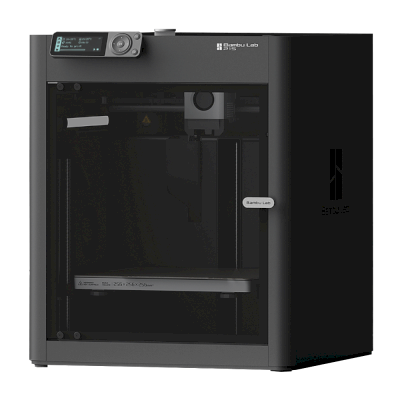 256 x 256 x 256 mmConnects with: SimplyPrint ClientAlso by Bambu Lab · Similar build volumeCompatible Compare side by side Bambu Lab P1S
 -
Bambu Lab A1
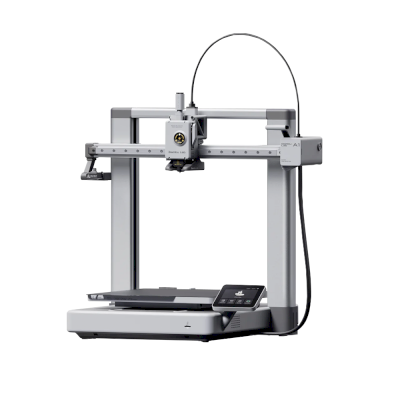 256 x 256 x 256 mmConnects with: SimplyPrint ClientAlso by Bambu Lab · Similar build volumeCompatible Compare side by side Bambu Lab A1
 -
Creality Ender-3
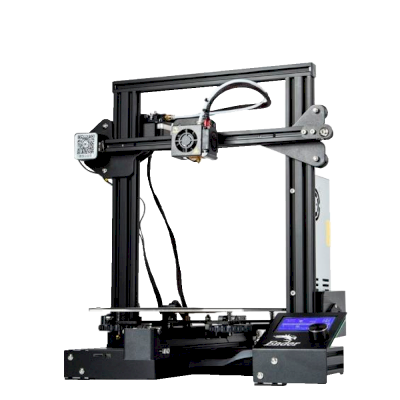 220 x 220 x 250 mmConnects with: Klipper (Moonraker), OctoPrintSimilar build volumeCompatible Compare side by side Creality Ender-3
 -
Creality Ender-3 v2
 220 x 220 x 250 mmConnects with: Klipper (Moonraker), OctoPrintSimilar build volumeCompatible Compare side by side Creality Ender-3 v2
Frequently asked questions
Is the Bambu Lab P2S FarmLoop Combo compatible with SimplyPrint?
Yes. You can connect the Bambu Lab P2S FarmLoop Combo to SimplyPrint via SimplyPrint Client, then slice, queue, start and monitor prints from your browser or the mobile app.
How do I connect the Bambu Lab P2S FarmLoop Combo to SimplyPrint?
Follow our step-by-step setup guide for the Bambu Lab P2S FarmLoop Combo. It shows how to connect it via SimplyPrint Client, what you need for each, and which to pick.
What slicer should I use for the Bambu Lab P2S FarmLoop Combo?
We recommend BambuStudio for the Bambu Lab P2S FarmLoop Combo. You can run it, and 6 other slicers, directly in SimplyPrint's online slicer - no install, on any device, with profiles for the Bambu Lab P2S FarmLoop Combo kept up to date automatically.
Can I use OrcaSlicer with the Bambu Lab P2S FarmLoop Combo?
Yes. OrcaSlicer comes with a profile for the Bambu Lab P2S FarmLoop Combo, and you can run it in SimplyPrint's online slicer, so there's nothing to install.
What filament can the Bambu Lab P2S FarmLoop Combo print?
Based on its specs (hotend up to 300C, heated bed up to 110C), the Bambu Lab P2S FarmLoop Combo handles PLA, PETG, or TPU & flexibles well. See the full filament guide above for ABS, nylon, PC and composites.
Does the Bambu Lab P2S FarmLoop Combo work with OctoPrint or Klipper?
Not that we know of, but you don't need either: SimplyPrint connects to the Bambu Lab P2S FarmLoop Combo via SimplyPrint Client.
What is the Bambu Lab P2S FarmLoop Combo's bed size and build volume?
The Bambu Lab P2S FarmLoop Combo has a 256 x 256 mm print bed and prints up to 256 mm tall, a build volume of about 256 x 256 x 256 mm. See the full specifications table above for bed type, temperatures and more.
Can the Bambu Lab P2S FarmLoop Combo eject prints automatically?
Yes, with an AutoPrint kit made for it: Bambu Lab P2S FarmLoop Combo. SimplyPrint's AutoPrint then starts the next job from your queue each time the plate is clear, so it keeps printing on its own.
Affiliate disclosure: Some links on this page are affiliate links. We may earn a commission if you make a purchase, at no extra cost to you. As an Amazon Associate, we earn from qualifying purchases.
© 2026 SimplyPrint. All rights reserved. This page and the compatibility, specification and review data on it are compiled by SimplyPrint and may not be copied, scraped, reproduced or republished, in whole or in part, without prior written permission. Printer images are the property of their respective manufacturers and are shown for identification purposes only; SimplyPrint claims no ownership of them. Quoted reviews belong to their authors.